If you manage a WordPress website with dozens, hundreds, or even thousands of pages, manually editing SEO titles and meta descriptions one page at a time can quickly become tedious.
A more efficient approach is to export your SEO metadata to a CSV file, edit it in Excel or Google Sheets, and then import the changes back into WordPress.
This guide explains how to export SEO metadata from Yoast SEO and All in One SEO (AIOSEO) to CSV, what information you can work with, and how to use a spreadsheet to make large-scale SEO updates.
Quick answer: You can export WordPress SEO metadata to CSV, edit fields such as SEO titles and meta descriptions in a spreadsheet, and then bulk-import your changes instead of editing every post individually.
Why Export WordPress SEO Metadata to CSV?
SEO metadata is often stored individually against each WordPress post, page, or custom post type.
That works well when you’re editing a handful of pages. It becomes much less practical when you’re carrying out a larger SEO project.
For example, you might need to:
- Rewrite SEO titles across 500 blog posts
- Improve meta descriptions for important landing pages
- Standardise title formats across a website
- Identify pages using missing or outdated metadata
- Optimise metadata after a website migration
- Review SEO titles and descriptions as part of a content audit
- Give a spreadsheet to a copywriter or SEO specialist for editing
- Make bulk SEO changes without opening every WordPress post
Exporting the data to CSV turns your WordPress SEO metadata into a format that’s much easier to review and manage.
You can open the resulting file in Microsoft Excel, Google Sheets, LibreOffice Calc, or another spreadsheet application.
What SEO Data Can You Export?
The exact fields available depend on the SEO plugin and the data stored on your website.
Common fields include:
- Post ID
- Post title
- URL
- Post type
- SEO title
- Meta description
- Focus keyphrase or keyphrase data
- SEO-related metadata
- Taxonomy information
The important distinction is that your WordPress content and your SEO metadata are separate pieces of information. Exporting the metadata gives you a practical way to audit and update those fields without having to work through the WordPress editor one page at a time.
How to Export Yoast SEO Metadata to CSV
Method 1: Use Yoast SEO’s Built-In Export
Recent versions of Yoast SEO include tools for exporting SEO information.
In the WordPress dashboard, go to:
Yoast SEO → Tools → Import and Export
Yoast provides an export function for keyphrase-related data, including options for URLs, titles, SEO titles, meta descriptions, keyphrase scores, and readability scores.
The exact options available can vary depending on your Yoast SEO version and whether you’re using Yoast SEO Premium.
Exporting Yoast data
- Log in to your WordPress dashboard.
- Go to Yoast SEO → Tools.
- Open Import and Export.
- Select the appropriate export option.
- Choose the fields you want to include.
- Generate the export.
- Open the resulting CSV file in Excel or Google Sheets.
Yoast also provides a bulk editor for working with SEO titles and meta descriptions directly inside WordPress, which may be more convenient if you only need to make relatively small numbers of changes.
Method 2: Export Yoast SEO Metadata Using a CSV Plugin
If your goal is to perform a broader WordPress SEO data export and bulk-editing workflow, you can use a dedicated CSV import/export plugin.
One option is Smart SEO Data CSV Import/Export.
The plugin is designed to work with SEO metadata stored by popular WordPress SEO plugins and lets you work with the data in a spreadsheet-friendly format.
Step 1: Install Smart SEO Data CSV Import/Export
Install and activate Smart SEO Data CSV Import/Export on your WordPress website.
After activation, go to:
Settings → SEO Import/Export
Open the Export tab.
The plugin detects the SEO plugin being used on your WordPress installation.
Step 2: Select the content you want to export
Choose the post types or taxonomies you want to include.
Depending on your website, this could include:
- Posts
- Pages
- Products
- Custom post types
- Categories
- Tags
- Custom taxonomies
You can also narrow the export when you only want to work with a specific portion of your website.
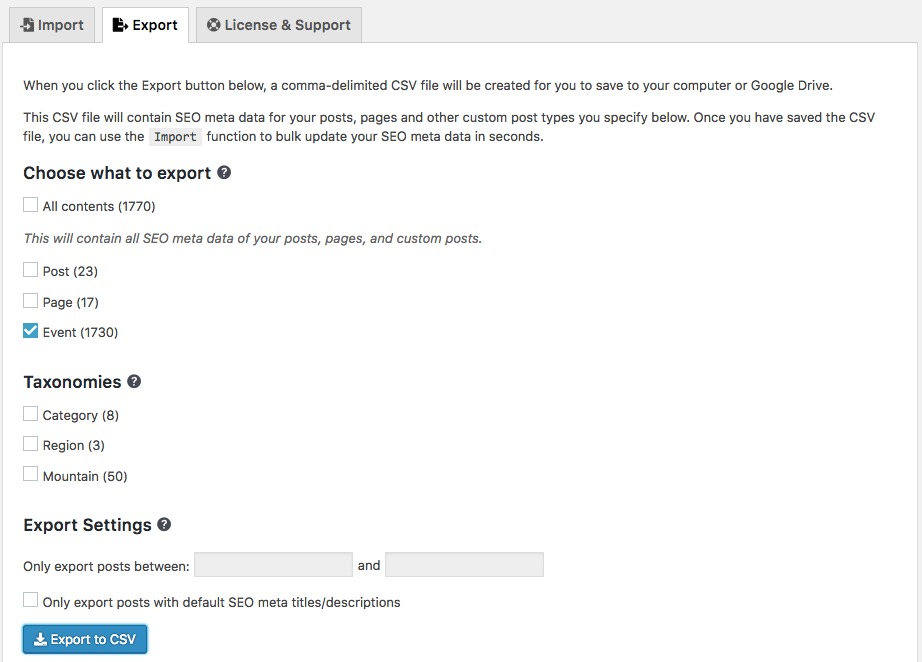
For example, you could export only posts published within a particular date range or identify content that is still using automatically generated SEO metadata.
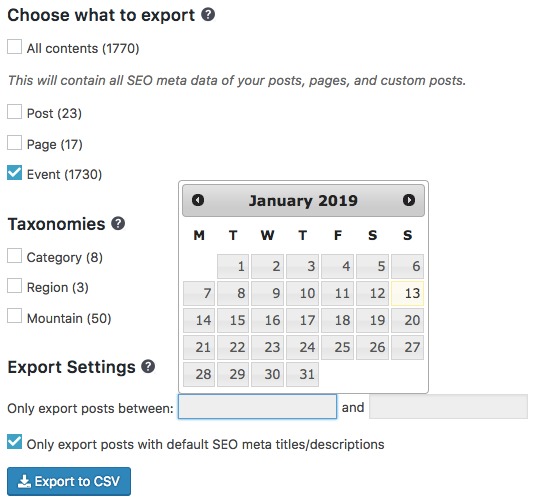
Step 3: Export the data
Click Export to CSV.
The plugin generates a CSV containing the selected content and its available SEO metadata.
For larger WordPress websites, exporting the data to a spreadsheet can make an SEO audit considerably easier because you can sort, filter, search, and edit hundreds or thousands of records from one file.

Step 4: Open the CSV in Excel or Google Sheets
Once the export is complete, open the CSV in your preferred spreadsheet application.
You can now review your SEO metadata row by row.
For example:
| URL | SEO Title | Meta Description |
|---|---|---|
| /service-a/ | Old SEO Title | Old meta description |
| /service-b/ | Old SEO Title | Old meta description |
| /service-c/ | Old SEO Title | Old meta description |
From here, you can rewrite the metadata in bulk rather than opening each WordPress page individually.
How to Export All in One SEO (AIOSEO) Metadata to CSV
All in One SEO also provides built-in export functionality.
In AIOSEO, go to:
All in One SEO → Tools → Import/Export
Under Export Content, you can select the post types you want to export.
AIOSEO allows SEO metadata to be exported in JSON or CSV format. Its documentation specifically recommends CSV when the purpose is to bulk edit SEO metadata using a spreadsheet.
Basic process
- Open All in One SEO → Tools.
- Select Import/Export.
- Go to the content export section.
- Select the post types you want to export.
- Choose CSV.
- Export the data.
- Open the CSV in Excel or Google Sheets.
- Make your SEO changes.
- Import the updated data back into AIOSEO.
AIOSEO also supports exporting SEO metadata associated with taxonomies, which can be useful when auditing category and tag metadata.
What Should You Change in Your SEO CSV?
Exporting your data is only the first step. The real benefit comes from using the spreadsheet to identify opportunities and make systematic improvements.
1. SEO Titles
Look for:
- Duplicate titles
- Missing titles
- Titles that are too generic
- Titles that don’t accurately describe the page
- Titles that don’t include the page’s primary topic
- Outdated titles
- Repetitive title templates
Instead of creating titles purely for search engines, write them to clearly communicate what the page is about and why someone should click it.
2. Meta Descriptions
Look for:
- Missing descriptions
- Duplicate descriptions
- Descriptions that are outdated
- Descriptions that don’t match the page
- Descriptions that don’t communicate the page’s value
- Descriptions containing old branding, offers, or information
A good meta description should accurately summarise the page and give a searcher a reason to visit.
Remember that Google may choose to generate a different search snippet instead of displaying the exact meta description you’ve written.
3. Duplicate Metadata
A spreadsheet makes duplicate SEO metadata much easier to identify.
For example, you can sort or use spreadsheet formulas to find repeated SEO titles and descriptions.
This is particularly useful on large websites where duplicate metadata may have accumulated over several years.
4. Outdated Information
Bulk SEO audits are also an opportunity to find references to:
- Old services
- Old business names
- Old locations
- Discontinued products
- Expired promotions
- Outdated statistics
- Old branding
Updating the metadata can be part of a larger content refresh.
A Practical SEO Metadata Bulk-Editing Workflow
For larger websites, I recommend using this workflow:
1. Export
Create a complete backup/export of your existing SEO metadata before making changes.
2. Audit
Use your spreadsheet to identify:
- Missing metadata
- Duplicate metadata
- Poor titles
- Poor descriptions
- Outdated information
- Important pages that need attention
3. Prioritise
Don’t necessarily start with your oldest pages.
Prioritise pages based on business value and search opportunity.
For example:
- High-traffic landing pages
- High-converting pages
- Important commercial pages
- Pages ranking on page one or two
- Pages with high impressions but low click-through rates
- Older content that still attracts organic traffic
4. Edit
Rewrite the SEO titles and meta descriptions in your spreadsheet.
Keep the changes useful and descriptive rather than trying to insert as many keywords as possible.
5. Import
Import the updated CSV back into your SEO plugin using the appropriate import functionality.
6. Verify
After importing, check a sample of pages manually.
Make sure:
- The correct page was updated
- The SEO title is correct
- The meta description is correct
- Existing metadata wasn’t accidentally overwritten
- Special characters were preserved
- URLs and post IDs still match the intended content
7. Monitor
After publishing your changes, monitor your organic search performance.
Look at changes in:
- Impressions
- Clicks
- Click-through rate
- Average position
- Organic conversions
Don’t judge the success of a metadata update purely by rankings. The purpose of a good search snippet is also to accurately communicate the page and encourage the right users to click.
UP NEXT: Bulk Update Yoast SEO Meta Data or All-In-One SEO Pack Using CSV
Disclaimer: Smart SEO Data CSV Import/Export is not affiliated nor associated in any way with Yoast SEO and All-in-One SEO Pack.